Slides
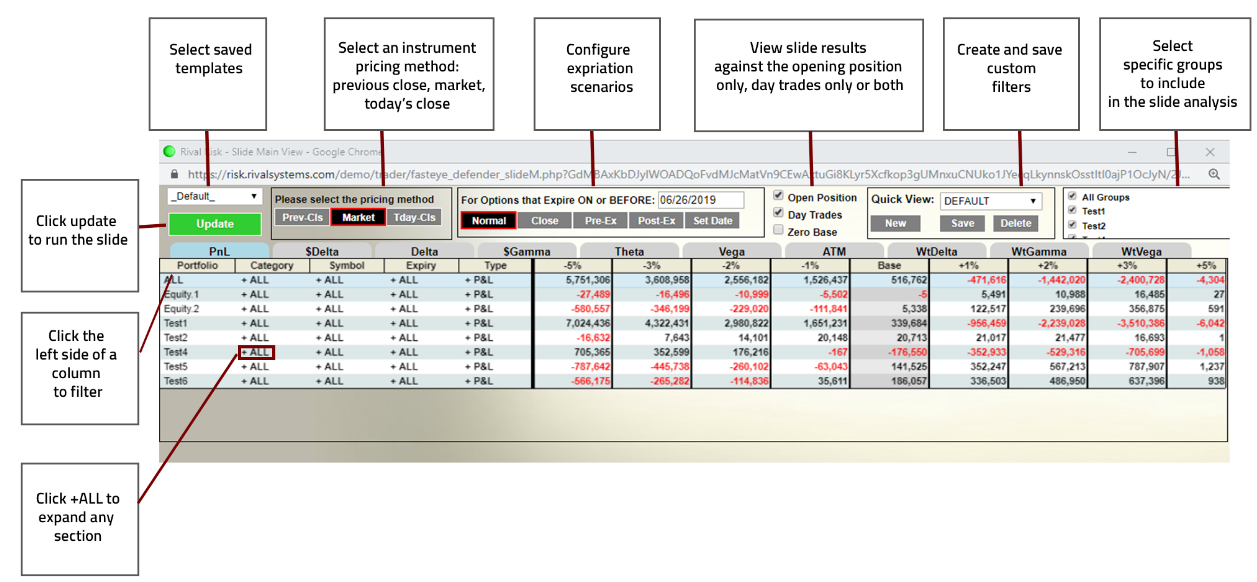
Generate risk slides with user-defined price and volatility scenarios.
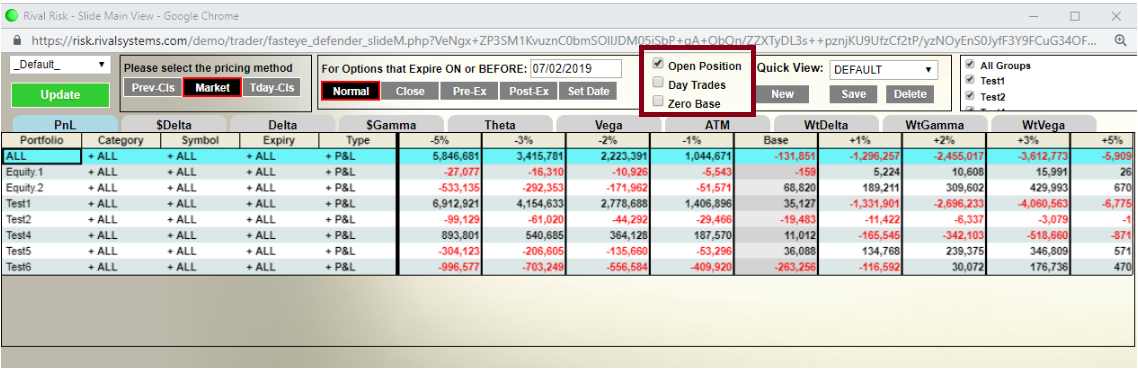
The Risk Slide page can be used to filter out opening position only or day trades only. By default, both the Open Position and Day Trades boxes will be checked.
As an example, to view the risk slide based on the opening position only, check the Open Position box and uncheck the Day Trades box:
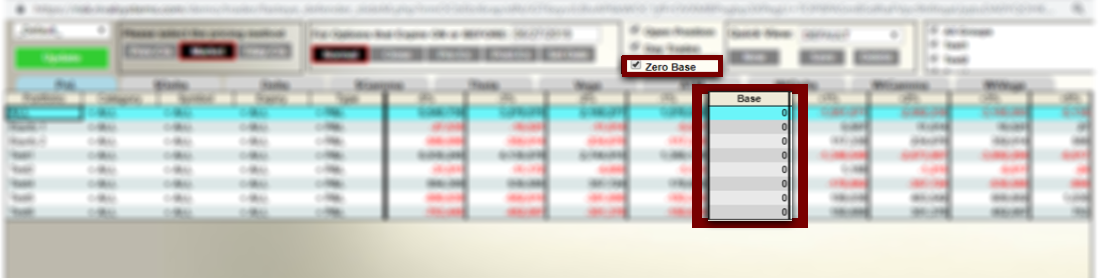
Select Zero Base to set the Base level values to zero. Scenario levels will be reflective of a change from zero:
Wheel Menu (Slides)
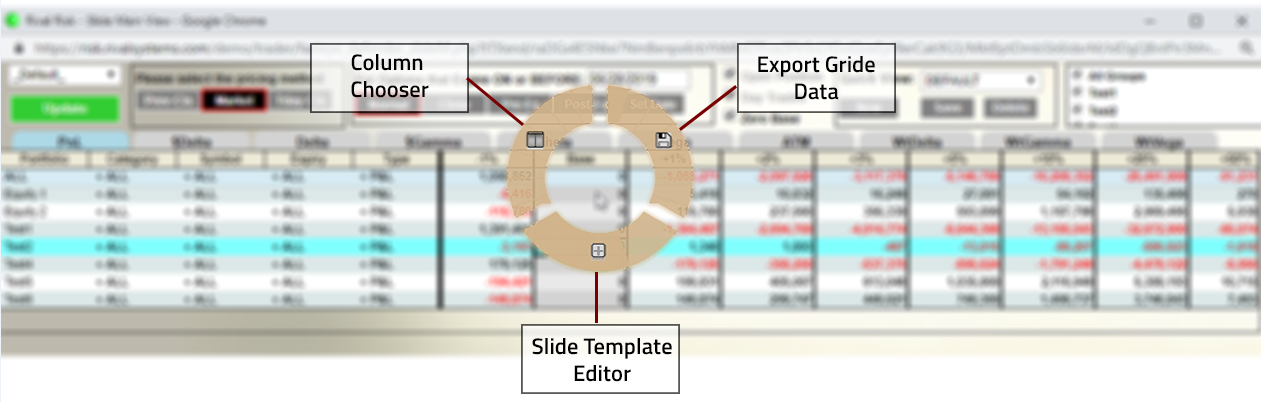
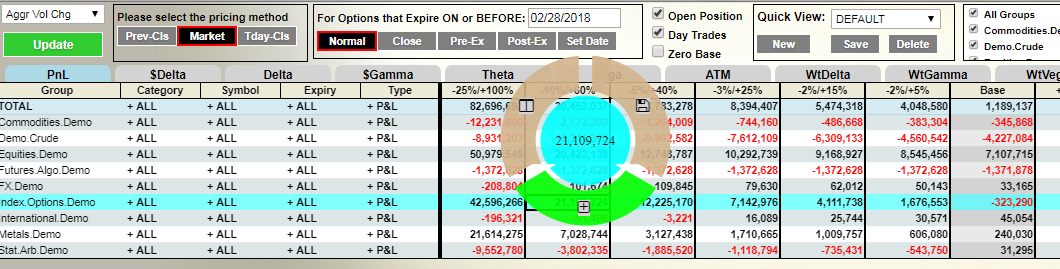
The Wheel Menu allows you to navigate to additional levels of functionality within the Slide View. Right click within the Slide View page to access the Wheel Menu.
Rival Risk Slide Template Editor
The slide template editor allows you to create and manage custom stress test scenarios by simulating different underlying price and volatility levels.
Create a new slide template
Right click in the slides page and select the + icon from the wheel menu to open the Slide Template Editor window
a. Pop-up blockers could block the window and may have to be disabled
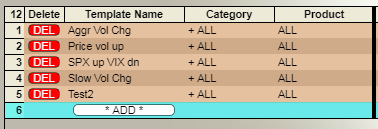
Click the * Add * button in the Template Name column
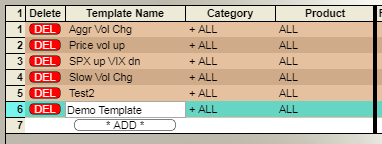
Type in the name of the new template and hit Enter on your keyboard
Click +ALL in the Category and Product columns to expand each section
Use the DEFAULT to create a scenario that will be applied to all products
To set slide values for specific product types click the * ADD * button in the Product column and type in a product symbol
a. For a group of products (e.g 10 Year Treasuries) enter the base symbol (e.g TY)
b. For a specific future or equity type in the full symbol (e.g TYH9)
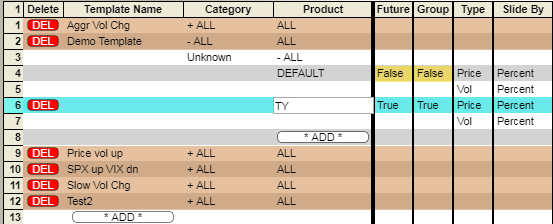
The Category field will automatically populate after the Product symbol is input
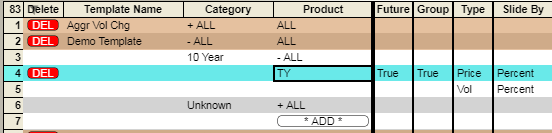
In the Future column select True or False based on the type of product
In the Group column select True if the symbol is to be used for all futures with the same base symbol (e.g TY for all 10 Year Treasuries)
Within the Type column, Price designates an underlying move and Vol designates a volatility move
In the Slide By column choose to apply the Price scenario based on a Price move or Percent move
a. The Vol scenario will only be available as a Percent move
Enter scenarios in any of the 16 (-8 to +8) levels available

Once the new slide template has been created, refresh the Slides page window to update the dropdown list of templates
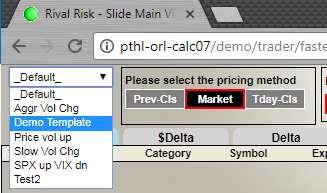
Delete Product or Slide Template
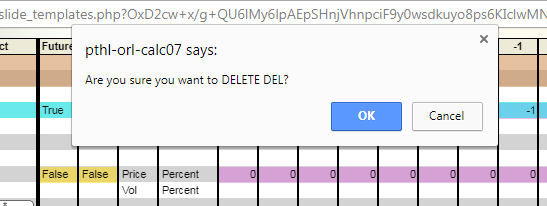
To delete an entire slide or individual product within a slide, click on the delete button in the corresponding row

Click OK or Cancel in the pop-up window
Expiration Scenarios

The Expiration Scenarios section (in the For Options that Expire ON or BEFORE box) include common scenarios for viewing risk on, before or after expiration.
Normal
Uses today's date and current market as Base
Applies user-defined shocks against the existing position at the time the slide is run
Close
User-defined expiration date
Uses current market as Base
Simulates a scenario to close all options expiring on or before the date set
Close at current mid-market and hedge based on current delta (into underlying at mid-market)
Pre-Ex (Pre-Expiration)
User-defined expiration date
Options expiring on or before that date are set to 1 vol
Options are not assumed to be exercised/assigned but are assigned at 100 or 0 delta based on futures price at each scenario level
View options delta and futures delta at each level
All options expiring after date set are handled using the Normal method (see above)
Post-Ex (Post-Expiration)
User-defined expiration date
This scenario assumes the current futures market price is the settle price
Options are assumed to be exercised/assigned based on the current price
Cash settled options will have a 0 delta
Options that settle into futures will have a 100 or 0 delta
Options delta is netted against futures
Price scenarios are run against netted deltas of exercised/assigned options and futures at current price
All options expiring after set date are handled using the Normal method
Set Date
Set a specific date in the future
Days are taken out of all options held
Options expiring on or before the set date are handled using the Post-Ex approach
Quick View
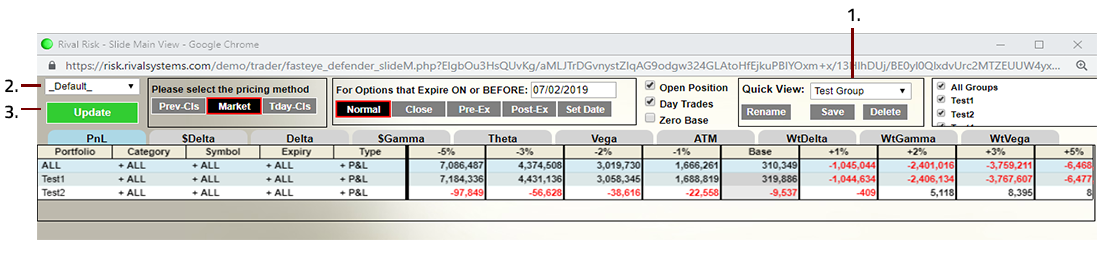
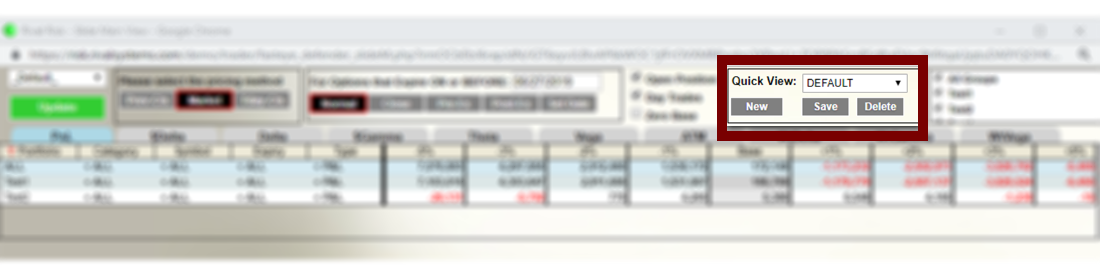
The Quick View save functionality works in conjunction with the filtering available in the Portfolio, Category, Symbol, Expiry and Type columns (left side of the slide page). Custom filters can be saved and applied for use with slide scenarios.
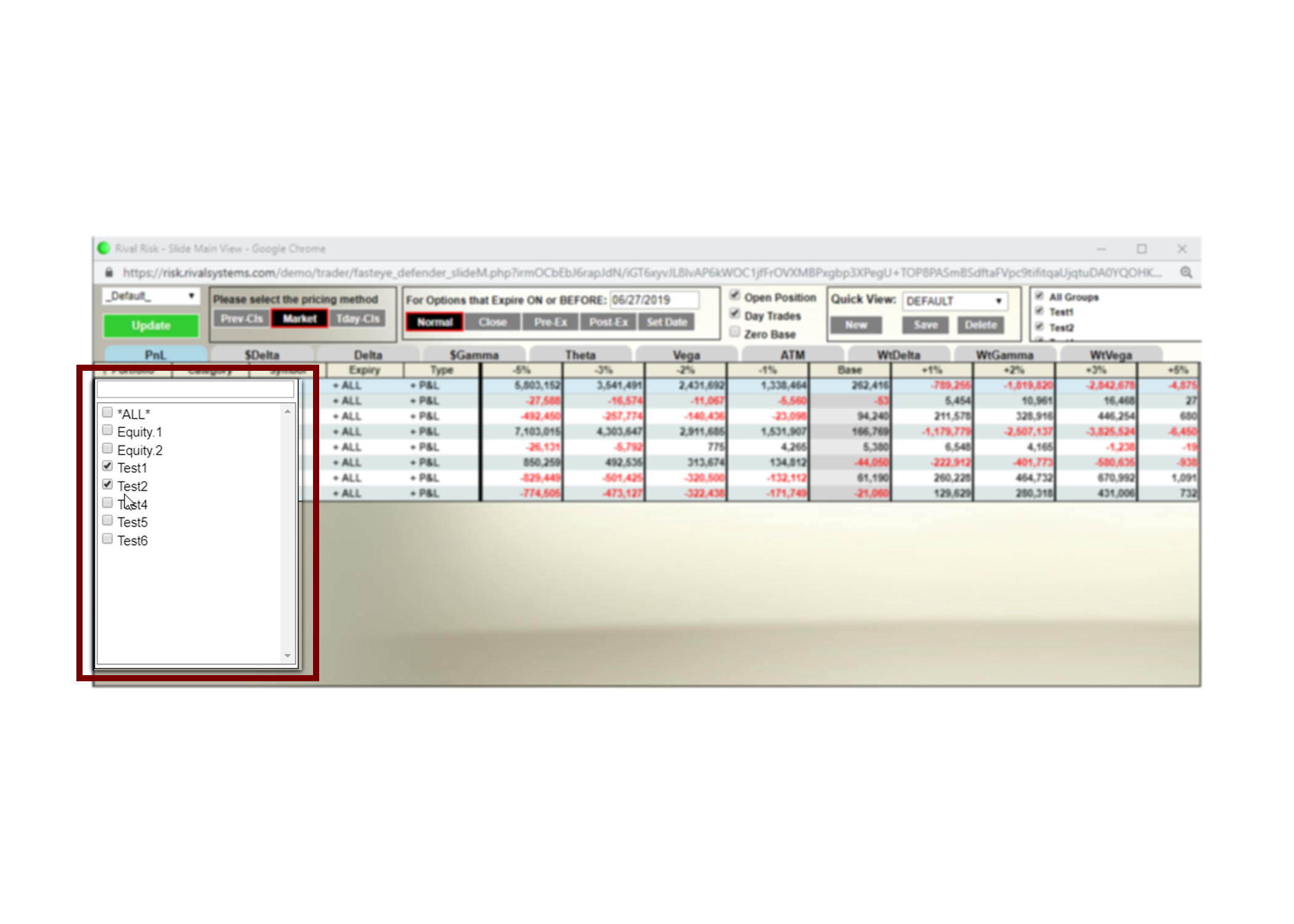
To create a Quick View group, use the filter function to select the Portfolio, Category, Symbol, Expiry or Type to be included:
Click the New button:
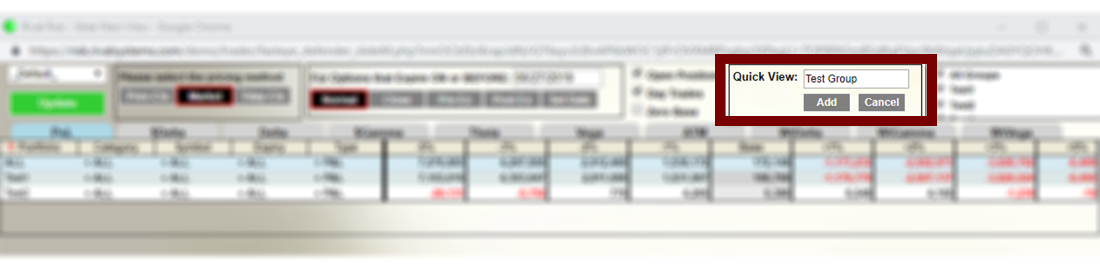
Enter a name and click Add:
Click Save:
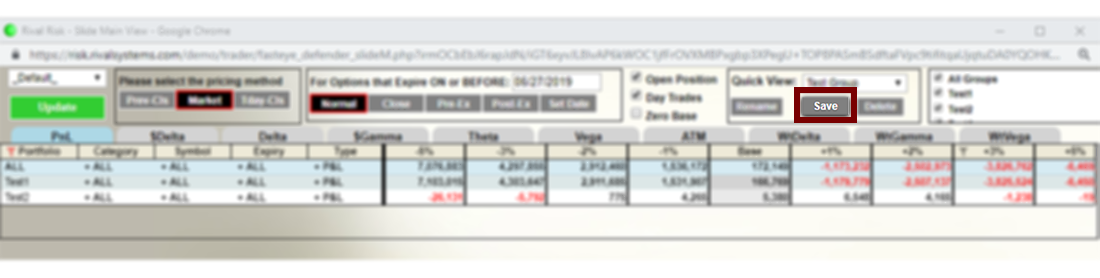
The new custom filter will be available from the Quick View menu:
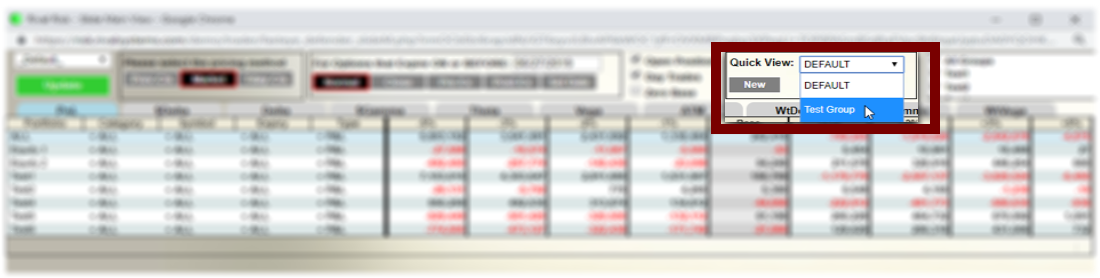
To apply the Quick View filter:
Select the Quick View group
Select the slide template
Click Update to run the slide